Add threads to an existing STL
Use STL-Nudge to add matching male and female threads to an existing STL without rebuilding the whole part in CAD. Choose Threads, load your parts, place a linked connector, adjust its dimensions and generate new meshes. Exporting the STL files requires free sign-in.
For a threaded hole alone, use the female result. Keep the matching male sample when checking fit. An STL is a triangle mesh: this tool adds a local connection, rather than recovering editable CAD history or certifying compatibility with a hardware standard.
Before you start
- Keep untouched originals. Use closed solids, with enough material around the planned hole and beneath the male root.
- Confirm units during import. STL stores no unit declaration; this interface uses millimeters.
- Choose the correct source slot: Female part receives the cavity; Male part receives the protruding thread. Check insertion access and whether the hole should be blind or through.
Try a small, reproducible pair
- Open the thread sample. Alternatively choose Load thread sample parts in the upload area. This uses a 20 × 20 × 20 mm female cube and a 20 × 20 × 5 mm male plate, with one pair already placed at their top centers.
- Select connector 1. On a narrow screen, open Controls. Choose Advanced and expand Dimensions. Use Thread system → Custom and Thread profile → Custom printable.
- Set Major diameter to 12 mm and Pitch to 4 mm. Keep Link matching engagement lengths checked; set Hole depth inward to 6 mm. Switch to Male part to confirm Thread length outward is also 6 mm.
- Set Fit clearance to 0.25 mm. Return to Female part. For your own models, click a suitable surface on each viewed part to place its side of the pair, then review position and orientation. The built-in example is already placed at female Z = 20 mm and male Z = 5 mm.
- Choose Generate threaded parts. Inspect both parts and their generated surfaces. These example values demonstrate the controls; they are not a universal printer preset.
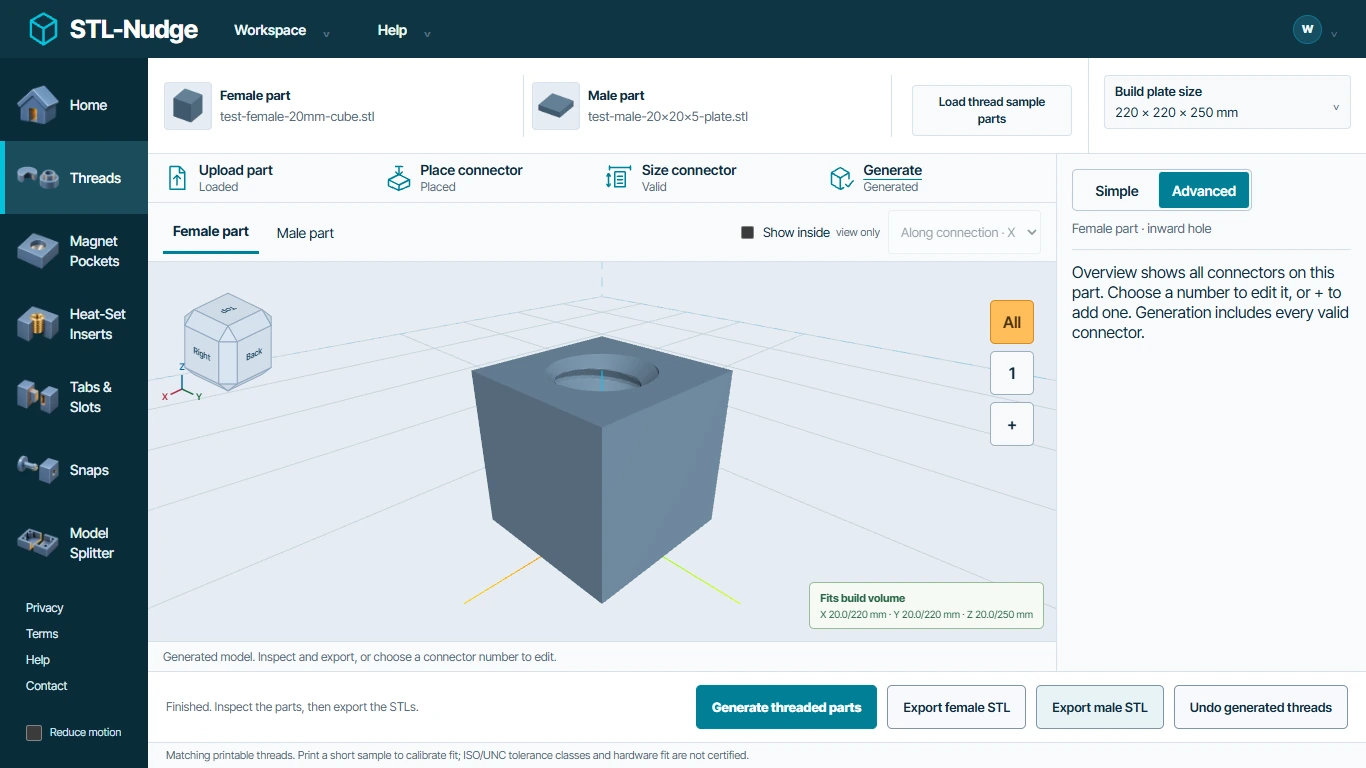
Inspect, export, then test the physical fit
The example leaves a nominal 14 mm below the 6 mm cavity in the 20 mm cube. Inspect the actual surrounding walls and assembly path on your own shape; the same diameter may break through a thinner part. A visible preview is not proof that the root joins the host or that generation succeeded.
Select Export female STL and Export male STL. If signed out, complete the centered free sign-in prompt and continue the export; the loaded models stay in this tab. Re-generate after a dimension or placement change. Keep your originals alongside the modified files.
Software checks covered both exported meshes, finite coordinates, enclosed nondegenerate surfaces and the intended thread radius changes. No slicer profile or physical print was tested for this guide. Print a short representative pair in your intended material and orientation before committing to a larger model. See the clearance guide.
Common questions
Can I use an existing screw or bolt?
The tool also offers standard-based profiles. The custom example here does not establish an ISO/UNC tolerance class or compatibility with a purchased fastener. Check the actual hardware and make a short fit test.
Can I edit without an account?
Importing, placement and generation work signed out. Downloading STL or ZIP files requires free sign-in. Saved workspaces store settings and source metadata, not the original STL bytes.
When should I use another tool?
Use CAD or a mesh-repair tool for a damaged/open mesh, a redesigned load path or complex shape changes. Use a slicer to inspect the resulting layers and supports. STL-Nudge does not simulate material strength.