Troubleshoot thread fit and generation
First identify where the failure occurs: editing/generation, slicing, or assembling the printed parts. A generation error needs a geometry or input fix. A successfully generated mesh that prints too tight needs a controlled print-fit investigation.
If generation cannot finish
- Invalid input: open the selected connector's Dimensions and read the field message. Diameter, pitch and engagement lengths must be positive; clearance cannot be negative. Commit your edit before generating.
- No material removed: check Female part, source selection, placement and inward direction. A cavity outside the solid or wholly inside an existing void cannot make the intended cut.
- Male root does not join: inspect Male part and place the connector on material that can support its root. A detached preview is not a connected solid.
- Boolean or source failure: keep the original file, verify its units and inspect for open edges, internal faces or non-manifold geometry in a mesh-repair/CAD tool. Try the built-in sample to separate a source problem from a general tool problem.
Do not treat a stale export from before your edits as evidence that the new settings worked. Return to a valid setup, generate again and inspect both outputs.
Reproduce and recover from an invalid edit
- Open the thread sample and follow the 12 mm example, with pitch 4 mm, linked lengths 6 mm and clearance 0.25 mm.
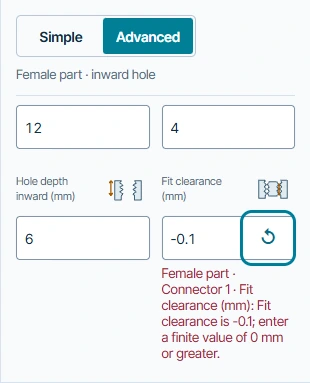
- Select connector 1, then in Advanced → Dimensions enter −0.1 in Fit clearance and leave the field. The message identifies the negative clearance and Generate threaded parts becomes unavailable. This is input validation, not a slicer or printer failure.
- Restore 0.25, commit the field, then generate again. The checked software example recovered to an enabled export. Sign in free when exporting and inspect the new meshes rather than reusing an older file.
If generation succeeds but the print does not fit
- It binds from the first turn
- Confirm matching pitch/profile and correct file pairing. Inspect entry damage, supports and first-layer expansion in the slicer or print before changing clearance.
- It starts but jams deeper
- Look for bottoming, misalignment, debris, damaged flanks or an unsuitable engagement length. More clearance cannot fix every assembly-path problem.
- It is loose throughout
- Compare a smaller clearance while keeping the other settings fixed. Check that you did not mix pairs from different trials or rescale one half.
- The thread cracks or pulls out
- Review the root, surrounding wall, orientation, material and intended load. Easy assembly is not proof of strength. Consider a different joint or a CAD redesign if the host cannot support the connection.
Use the clearance fit ladder to isolate one variable. Before making a full part, inspect the slicer layers and print a representative small sample. These are suggested investigations; no printer, slicer profile, assembly-cycle or load test was performed for this guide.
Common questions
Should I make everything bigger?
Not automatically. Enlarging a hole can remove more of its host wall; changing pitch or scaling a part changes the mating geometry. Diagnose the failure first.
Does the cutaway prove the mesh is printable?
No. It is a viewing aid. Inspect the generated/exported result, then the actual slicer toolpaths. STL export uses float32 coordinates; the recorded mesh checks ignore exact zero-area encoding facets when assessing the nondegenerate surface, rather than claiming every raw triangle is ideal.
What should I include in a support report?
Tool, dimensions, source units, steps, the exact safe error text and whether the built-in sample works. Keep confidential models and account/reset links out of a public report. See Help and Contact.